sqrt(100)[1] 10Photo by Ales Nesetril on Unsplash
Technical reports often need to combine explanation, code, numerical results, figures, tables, equations, and references. A conventional word processor (say, Microsoft Word) can certainly handle those ingredients, but the workflow becomes fragile when outputs are copied manually from an analysis environment (say, RStudio).
A figure changes, so you replace a screenshot. A model changes, so you retype a coefficient. A table changes, so you paste it again. Each manual step creates another opportunity for the document and the analysis to drift apart.
We’ve all been there.
Quarto provides a different workflow: write the narrative and the analysis in one source document, then render the result into HTML, PDF, Word, presentations, and other formats.
No screenshots. No copying and pasting. No retyping. Just Quarto.
A Quarto document normally has the .qmd extension and combines three kinds of material:
A minimal document looks like this:
---
title: "My report"
author: "Your Name"
format: html
---

# Introduction

Hi there! This paragraph is written in Markdown.

And this is an executable R code chunk:

```{r}
sqrt(100)
```
One of Quarto’s most useful features is its support for code cells. When you render the file, Quarto runs the code and displays the resulting R output.
Because this website is built with Quarto, we can observe and test this behavior directly on the page:
sqrt(100)[1] 10The source file remains readable because the prose and code are kept together.
Screenshots freeze output at a particular moment.
Screenshots do not reveal how the result was produced; they are difficult to update and often look blurry or inconsistent.
Quarto executable documents address these problems:
This does not eliminate the need for careful writing or validation. It simply removes many repetitive manual steps, making your life much easier.
You can author Quarto documents in RStudio, Visual Studio Code, Positron, or another text editor.
In RStudio:
.qmd source file.Quarto itself must be installed, although recent versions of RStudio commonly bundle or detect it.
You can verify the installation in a terminal with:
quarto checkThe YAML block at the top of a .qmd file controls document-level settings.
For example:
---
title: "Policy Analysis Report"
author: "Your Name"
date: today
format:
  html:
    toc: true
    code-fold: true
  pdf:
    toc: true
bibliography: references.bib
---
This configuration defines both HTML and PDF outputs, adds a table of contents, and connects the document to a bibliography file.
YAML is sensitive to indentation. Use spaces consistently, avoid tabs, and check the surrounding structure when Quarto reports a metadata error.
The following R cell creates a small data set representing the inventory of several fruits in, say, a grocery store:
# Fruit names
fruits <- c("Apple", "Banana", "Orange", "Pear", "Grape")

# Number of each fruit currently in stock
inventory <- c(24, 18, 31, 12, 45)

print(inventory)
[1] 24 18 31 12 45A figure can be generated from the same data:
plot(
  inventory,
  type = "b",
  xaxt = "n",
  xlab = "Fruit",
  ylab = "Inventory",
  main = "Fruit inventory"
)

axis(
  side = 1,
  at = seq_along(fruits),
  labels = fruits
)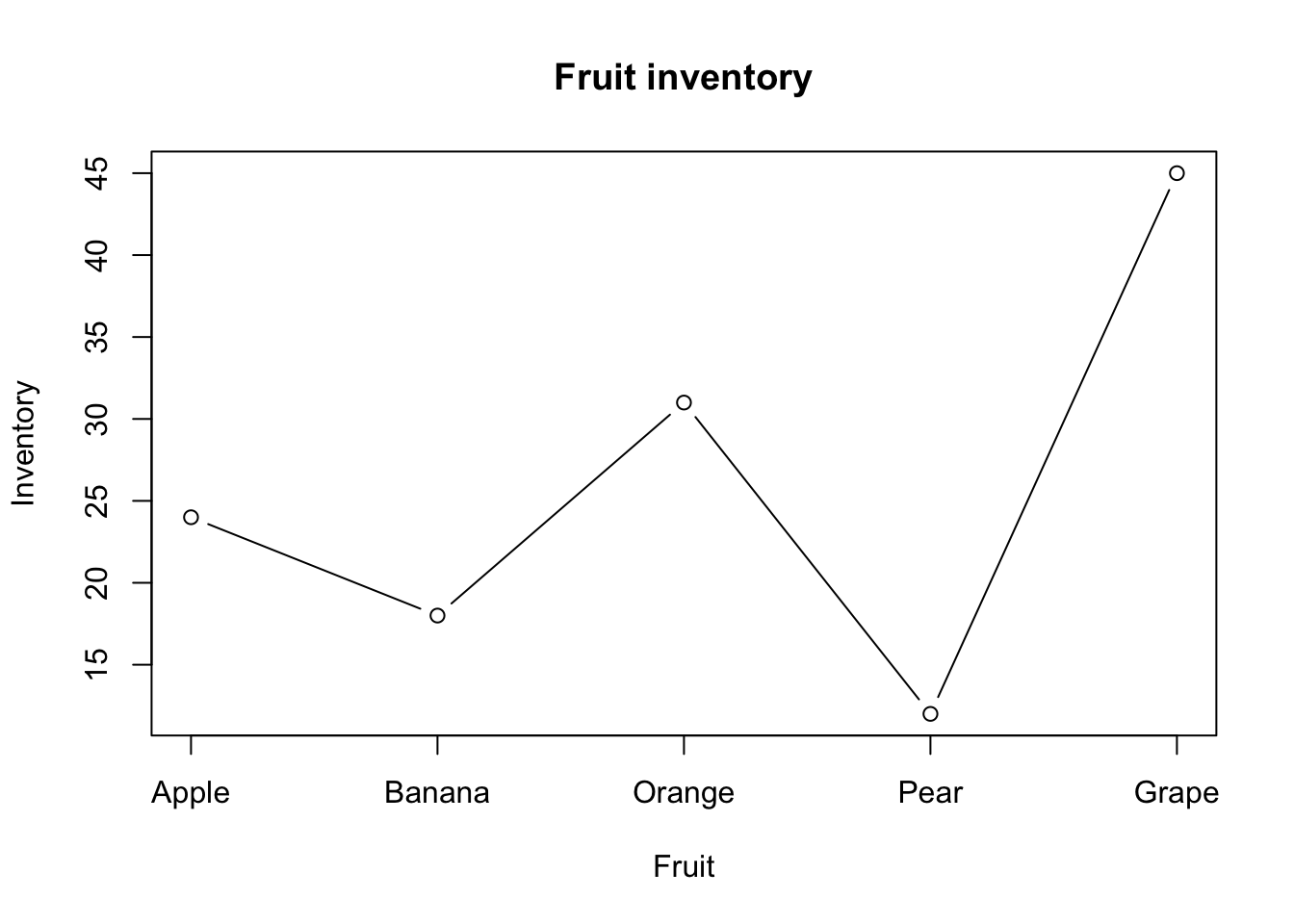
Because the code is part of the Quarto document, changing inventory and rendering again updates both outputs.
Code-cell options let you decide whether code, messages, warnings, and output should appear.
For example:
```{r}
#| echo: false

fruits <- c("Apple", "Banana", "Orange", "Pear", "Grape")

# Remove all vowels from a vector of fruit names
gsub("[AEIOUaeiou]", "", fruits)
```
The option echo: false tells Quarto to display the output while hiding the code that generated it.
Because the example above is shown literally, you see the code rather than the R output (I know this may have been confusing!).
In practice, the chunk would render as follows, with the code hidden:
[1] "ppl" "Bnn" "rng" "Pr" "Grp"Other useful options include:
warning: false suppresses warnings.message: false suppresses messages.eval: false displays code without running it.include: false runs code without displaying the cell or its output.label identifies a figure, table, or code cell for cross-referencing.Quarto supports documents that use R, Python, Julia, and Observable JavaScript. A project may therefore use the language that best fits each task.
So far, we have been using R:
# This is R
message = "hello"
toupper(message)
[1] "HELLO"A simple Python cell looks like this:
# This is Python
message = "hello"
message.upper()'HELLO'The execution engine you need depends on the document. Quarto typically executes R code with knitr and Python code with Jupyter. It can also integrate R and Python through packages such as reticulate.
That said, sharing objects across languages requires additional environment configuration and may not work automatically on every computer.
For reproducibility, document the required packages and environment rather than relying on software that happens to be installed locally.
I will discuss reproducible cross-language programming in a later post.
Quarto can manage citations through a BibTeX file specified in the YAML header’s bibliography field, as shown in an earlier example:
---
title: "Policy Analysis Report"
author: "Your Name"
date: today
format:
  html:
    toc: true
    code-fold: true
  pdf:
    toc: true
bibliography: references.bib
---
A citation key such as @author2024 can then be used in the prose. Quarto formats the citation and reference list according to the selected style.
Quarto also supports -style mathematics:
The linear model can be written as $y = X\beta + \varepsilon$.The rendered output would include a pretty equation like this:
\[y = X\beta + \varepsilon\]
Figures, tables, equations, and sections can receive labels and be referenced elsewhere in the document. This is especially useful in long reports where manually maintained numbering becomes error-prone.
Quarto can produce:
And, of course, personal and project websites, including this one.
The common advantage is that the source remains plain text and can be placed under version control. That makes revisions transparent and supports collaboration.
For a small reproducible report:
data/.scripts/..qmd document at the project root.Quarto is not a replacement for thoughtful analysis or careful editing. It is a publishing system that keeps the evidence, computation, and explanation connected.
Once that connection becomes part of the workflow, professional documents become easier to update and much harder to break accidentally.
The official Quarto documentation is the best reference for formats, execution engines, citations, cross-references, and project configuration.
So, welcome to Quarto! Hopefully, it will save you as much time as it has saved me.
Alvarado-Mena, E. (2026, July 28). Rendering professional documents with Quarto. AlvaradoCSS. https://www.alvaradocss.com/posts/professional-documents-quarto/
Alvarado-Mena, Edwin. “Rendering professional documents with Quarto.” AlvaradoCSS. Originally published November 15, 2024; last modified July 28, 2026. https://www.alvaradocss.com/posts/professional-documents-quarto/.
How to organize your computer for data work